目前無論是網路、3G、4G、WIFI的連網速度越來越穩定及快速
也有不少免費或付費的排播系統可使用手機或android機上盒來收看各式頻道或影片
頻道來源可以是接收衛星訊號再轉成網路串流
頻道來源也可以是將多個影片透過排播程式串在一起並轉成網路串流

Johnson峰 發表在 痞客邦 留言(1) 人氣()

管理網站時碰到的後門程式
先PO其中一個程式
data.php
<?

Johnson峰 發表在 痞客邦 留言(0) 人氣()


What’s Banana Pi?


It’s an open-source single-board computer. It can run Android 4.4, Ubuntu, Debian, Rasberry Pi Image, as well as the Cubieboard Image. It uses the AllWinner A20 SoC, and has 1GB DDR3 SDRAM

What can I do with Banana Pi?

Build… 


  • A computer

  • A wireless server

  • Games

  • Music and sounds

  • HD video

  • A speaker

  • Android

  • Scratch

  • Pretty much anything else, because Banana Pi is open source


  • Who’s it for?


    Banana Pi is for anyone who wants to start creating with technology – not just consuming it. It's a simple, fun, useful tool that you can use to start taking control of the world around you.

    Johnson峰 發表在 痞客邦 留言(0) 人氣()

    Banana Pi Quick Start Guide
    By Tony Zhang
    By following this short quick start guide, you can use your Banana Pi in just a few minutes. There are three steps to boot your Banana Pi.
    Step 1: Get what you need.
    To enjoy the use of your Banana Pi, you will need at least the accessories in the table below.


    No.
    Item
    Minimum recommended specification & notes


    1
    SD card


    • Minimum size 4Gb; class 4 (the class indicates how fast the card is).

    • We recommend using branded SD cards as they are more reliable.


    2a
    HDMI(Full sized) to HDMI / DVI lead


    • HDMI to HDMI lead (for HD TVs and monitors with HDMI input).
      OR
      HDMI to DVI lead (for monitors with DVI input).


    2b
    AV video lead


    • A standard AV video lead to connect to your analogue display if you are not using the HDMI output.


    3
    Keyboard and mouse


    • Any standard USB keyboard and mouse should work.

    • Keyboards or mice that take a lot of power from the USB ports, however, may need a powered USB hub. This may include some wireless devices.


    4
    Ethernet cable/USB WiFi(Optional)


    • Networking is optional, although it makes updating and getting new software for your Banana Pi much easier.


    5
    Micro USB power adapter


    • A good quality, micro USB power supply that can provide at least 1A at 5V is essential.

    • Many mobile phone chargers are suitable—check the label on the plug.


    6
    Audio lead (Optional)


    • You can choose a 3.5mm jack audio led to connect to audio port to get stereo audio.


    7
    Mobile Hard disk (Optional)


    • You can choose to connect a mobile hard disk to SATA port to store more files.


    \ \ \
    HDMI to HDMI lead HDMI to DVI lead AV video lead
    \ \
    SD card Micro USB power adapter


    Step 2: Prepare your SD card for the Banana Pi
    In order to enjoy your Banana Pi, you will need to install an Operating System (OS) onto an SD card. Instructions below will teach you how to write an OS image to your SD card under Windows and Linux.

  • Insert your SD card into your computer. The size of SD should be larger than the OS image size, generally 4GB or greater.

  • Format the SD card.
     Windows:

    1. Download the a SD card format tool such as SD Formatter from 
      https://www.sdcard.org/downloads/formatter_4/eula_windows/

    2. Unzip the download file and run the setup.exe to install the tool on your machine.

    3. In the "Options" menu, set "FORMAT TYPE" option to QUICK, "FORMAT SIZE ADJUSTMENT" option to "ON".
      \

      \

    4. Check that the SD card you inserted matches the one selected by the Tool.

    5. Click the “Format” button.

    Linux:

    1. Run fdisk –l command to check the SD card node.

    2. Run umount /dev/sdxx to unmount all the partitions of the SD card.

    3. Run sudo fdisk /dev/sdx command to configure SD card. Use o command to delete all partition of SD card and use n command to add one new partition. Use w command to save change.

    4. Run sudo mkfs.vfat /dev/sdxcommand to format the new created partition of SD card as FAT32.
      (x should be replaced according to your SD card node)


    You can also jump this step under Linux, because write image command dd under Linux will format the SD card automatically.


  • Download the OS image from the Downloads webpage.

  • Unzip the download file to get the OS image.
     Windows: Right click on the file and choose “Extract all”.
     Linux: Run unzip [path]/[downloaded filename] command.
    If the filename extension is .tgz, run tar zvxf [path]/[downloaded filename] command.
    Ensure that neither the file name of the image you're using or the path contain any spaces (or other odd characters, for that matter).

  • Write the image file to the SD card.
    Windows:

    1. Download a tool that can wirte images to an SD card, such as Win32 Diskimager from:http://sourceforge.net/projects/win32diskimager/files/Archive/

    2. Open the unzipped image file.
      \

    3. Click Write button. Wait patiently to successfully complete writing.

    Linux:

    1. Run sudo fdisk –l command to check the SD card node.

    2. Verify if the hash key of the zip file is the same as shown on the downloads page (optional).
      sha1sum [path]/[imagename]
      This will print out a long hex number which should match the "SHA-1" line for the SD image you have downloaded.

    3. Run umount /dev/sdxx to unmount all the partition of the the SD card

    4. Run sudo dd bs=4M if=[path]/[imagename] of=/dev/sdx command to write image file to SD card. Wait patiently to successfully complete writing. Please note that block size set to 4M will work most of the time, if not, please try 1M, although 1M will take considerably longer.You can use sudo pkill –USR1 –n –x dd command to check progress


  • Step 3: Set up your Banana Pi
    According to the set up diagram below, you can easily set up your Banana Pi.


  • Insert the newly written SD card to the SD card spot on the left side edge of the underside of the board.

  • On the bottom "edge" in the middle of the board is the HDMI Type A (Full sized) port, just on the right of the SATA port. Just connect any HDMI cable from the board to your TV or HDMI Monitor.
    If you don't have a TV/Monitor with a HDMI or DVI-D port you can use the yellow AV jack located in the middle of the "top" edge and the 3.5 mm stereo headphone jack to the right of it.

  • Plug a USB keyboard and mouse into the USB slots located on the right edge. 

  • Just under the USB ports on the right edge is the ethernet connector for anyone who wants to plug the Banana Pi into a wired network.

  • Finally, at the very left of the bottom edge is the micro-usb power connector.  Plug in a regulated power supply that is rated at 5V ±5% and at least 1A.  Any number bigger than 1A (like 2A) will also work. Avoid using the smaller chargers used for small GSM phones, as these are often unregulated, even if they claim "5V 1A", they may do "5V" and may do "1A", but not at the same time!
    The mini-USB (on the left) is the wrong one. It’s thicker and looks like a trapezoid with its sides pinched in.  The micro-USB (on the right) is the correct one.  It is thinner and also looks like a trapezoid except it’s sides are rounded outward. 

    \


  • If you have a free 2.5 inch hard drive, you can put it into use on Banana Pi. Connect the SATA cable to the SATA port just between micro-USB and HDMI. Remember put the power cable with 2 male 2.54mm headers into the SATA power. Then you can plug your hard drive into the other side of the SATA cable. Be careful with the connection of different color cables. (This step can be skipped)


  • If all goes well, the Banana Pi will boot in a few minutes. The screen will display the OS GUI.
    Step 4: Shut down your Banana Pi 
    You can use the GUI to shut down the Banana Pi safely.  
    Also you can run the command in the terminal:  
    sudo halt 
    or  
    sudo shutdown –h now
    This will shut down the PI safely, (just use the power key to turn off might damage the SD-cards file system). After that you can press the power key for 5 seconds to turn it off.

    Johnson峰 發表在 痞客邦 留言(0) 人氣()

    From: http://hardware-libre.fr/2014/06/raspberry-vs-banana-hardware-duel/
    Raspberry vs Banana : hardware duel

     
    I took the time to play with the Banana Pi board, and made some benchmarks against the Raspberry Pi.
    Here are the specs of the two (three) board, performance related :


    Raspberry Pi [model A] [model B]
    Banana Pi


    Chip
    Broadcom BCM2835 SoC full HD multimedia applications processor
    Allwinner A20 (sun7i)


    CPU
    700 MHz Low Power ARM1176JZ-F
    ARM Cortex-A7 Dual-Core 1GHz


    GPU
    Dual Core VideoCore IV, OpenGL ES 2.0/1.1
    ARM Mali400 MP2, OpenGL ES 2.0/1.1


    Memory
    [256] [512] MB 400MHz SDRAM
    1GB DDR3 SDRAM (shared with GPU)


    Storage
    SD, MMC, SDIO onboard
    SD (Max. 64GB) / MMC onboard
    SATA onboard


    Network
    [None] [10/100 on LAN9512 chip]
    10/100/1000 on A20


    USB2.0 ports
    [1 on BCM2835] [2 on LAN9512 chip]
    2 on A20


    Video output
    HDMI 1.3a, composite RGBDisplay Serial Interface (DSI) onboard
    HDMI 1.4, composite RGBCVBS , LVDS onboard


    Power Source
    5v / 1.2A on micro-usb
    5v / 2A on micro-usb


    I used a second Raspberry Pi, model A, to compare it to the two other, when possible (not that easy with only one usb and no ethernet onboard).
    For the tests, I used the 2 new, exact same SD cards : SANDISK Ultra – SDHC Class 10
    On the Raspberry Pi, I « burned » a fresh 2014-01-07-wheezy-raspbian image.
    On the Banana Pi, I « burned » a fresh Raspbian_For_BananaPi_v2_0 image.
    According to the developpers, the Banana Pi image is perfectly compatible with a Raspberry Pi. I tried it, and it’s true : the Raspberry boots normaly from the Banana Pi’s image. So, I conducted the benchs one more time, using a Raspberry model B with the Banana image. I will use the results to see the OS performance hit (if any) and to what extend those benchs are trustable.
    Similarities stop here. There are enough differences to expect a performance boost. Let’s dive into the details.
    Edit : new power consumption and SATA performance benchmarks here !
    I initially planned to include the HummingBoard in this test, but their sales dpt never answered to my emails… :-( 
    1. CPU
    lower the better

    lower the better


    This is a surprise : in a single-threaded test, the Allwinner A20 chip is slower than the Broadcom BCM2835, even with theorically 1GHz, compared to the Raspberry’s 700MHz..
    However, the A20 ran 4x faster on the same dual-threaded test. This is a massive gain over the Broadcom BCM2835 (over a 3 magnitude).
    I ran some checks during normal linux operations (apt-get, internet, arduino IDE, etc) to verify the A20 always runs on 2 cores : it seems to.
    2. GPU
    I don’t know how the Mali400 GPU should compete versus the Dual VideoCore IV. I just know my 

    Samsung


     Galaxy S3 runs on a Mali400, and it runs pretty well in HD movies and video-games.
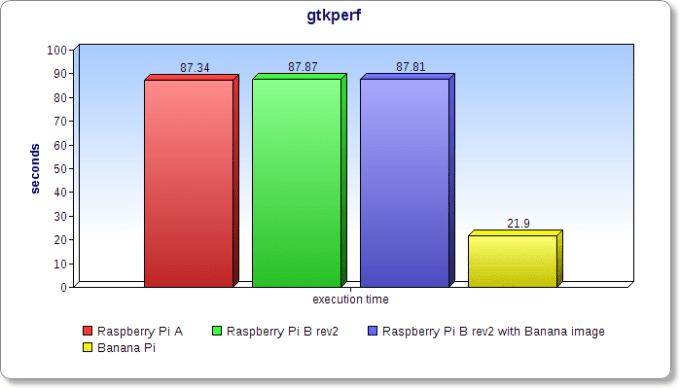
     
    lower the better

    lower the better


    The Mali400 performance boost versus the VideoCore, is huge (over 4x) ! Gtkperf may not be the best graphic benchmark, but there’s something.
    3. Memory
    Going from 256 or 512 MB SDRAM to 1GB DDR3 should be a nice performance boost, again.
    mbw_new
    The Banana beats the Raspberry, especially on MCBLOCK were the gain is massive. Unfortunatly I don’t really know how to interpret those values, except higher is better…
    4. SD card
    It is very difficult to run reliable disk benchs on a SD card, because of the inevitable wear. And disc bench cause huge stress on a SD card, with many reads/rewrites. So, depending on the wearing of each card when I did these tests, results may be a little off.
    higher the better

    higher the better


    I think we could consider normal SD operations are the same, on Banana or Raspberry. I think the massive boost in cached reads is due to the memory.
    If you know better benchmarks I could run (non destructive for the SD card, please ^^), let me know, thanks ! 
    5. Networking
    One of the things that annoys me the most on the Raspberry is the network and/or usb speed / reliability. Remember, on the Raspberry Pi model B, ethernet bandwith is shared with the 2 USB2.0. So, the network performance is not fantastic.
    On the Banana, the 2 USB2.0 ports are direct from the Allwinner A20 chip, and there’s a dedicated chip for the Gigabit ethernet. So, let’s see how this really runs :
    higher the better

    higher the better


    The difference is massive ! I did the test on a Gigabit switch, several times. The result is consistent.
    6. Advanced tests
    I did some complete tests using hardinfo on both boards. The resulting documents are a little too big to be posted here, and there are many nice infos in them. You can view them here :
    Raspberry Pi
    Raspberry Pi running Banana Pi Raspbian image (v2.0)
    Banana Pi
    Those reports are also available on my GitHub
    Conclusion
    I felt like going from a Pentium III-800MHz to a first-generation Core-Duo. The performance boost is very noticeable, everywhere. It could be easily used as a desktop PC or as a webserver. No problem.
    Despite still being really « beta », the Banana’s Raspbian runs really well : unlike the Raspberry, there’s no lag when opening the lightdm menu, programs launch very fast, and internet browsing is really pleasant. The OS is ready in 30 seconds from power-on, and everything I needed (HDMI, wireless keyboard, usb-wifi…) worked out of the box.
    I don’t really use my Raspberries as media-servers/client, so I can’t really tell about the multimedia performance. But given the A20 specs (made for tablets, with multimedia buit-in functions) and the glxperf results, I’m not worried about it.
    When running X desktop, I noticed the cpu bargraph almost never reached 100% on the Banana, no matter what I did. It remained low/middle almost all the time. On the Raspberry, the bargraph jumps to 100% all the time.
    The Banana Pi OS seems almost equally powerfull than Raspbian official, on a Raspberry Pi. The Banana Pi works with Banana and Raspberry boards out of the box, and this little detail is very important.
    IMG_0144
    I know for a fact XBMC is not supported yet, but it’s incoming.
    One could argue the community is almost inexistant, so are the sources / documentations. But the Allwinner chip family is well documented, with a lot of sources available, and some talented developers : the Axx chip is present in a lot of devices, especially tablets (its main purpose). The Banana Pi team seems to be working hard to resolve the last software issues of the board, and is communicating very well. It’s a very good thing.
    Personaly, I really like this board. It’s powerfull, with a lot of connections, and almost everything I miss in my Raspberries : faster, more stable power, better networking and USB, and an onboard RTC, and SATA, and, and…
    However, for now, I wouldn’t recommend it to a novice in this type of hardware, because of the OS relative youth. The Raspberry is still the perfect start point.
    On a side note, someone did almost the same tests between a Raspberry and a CubiBoard here. Combining the two articles can be very informative.
    Next, I plan to run the Banana like a Raspberry : GPIO, I²C, SPI, tft-touch display, etc… I’ll keep you informed.
    Out of curiosity : how many of you would buy one for ~50-60$, if you could buy it right here ? Let me know in the comments or on our Google+ page !

    Johnson峰 發表在 痞客邦 留言(0) 人氣()

    0819-2200.bmp
    ZINWELL Powerline Ethernet Bridge&Switch ZPL-200
    電力線網路橋接器測試報告

    Johnson峰 發表在 痞客邦 留言(0) 人氣()

    HOWTO--如何移動Oracle的所有數據檔
    發表人:vongates | 發表時間: 2005年一月29日, 11:29
     

    Johnson峰 發表在 痞客邦 留言(0) 人氣()

    蝴蝶蘭
    到花市買蝴蝶蘭小盆栽數盆
    自行插花到花盆
    感覺也是很漂亮又比較便宜
    大概費用如下

    Johnson峰 發表在 痞客邦 留言(0) 人氣()

    登入至oracle資料庫主機
    進入su -權限
    rm -rf /export/home/dbback/npm/*
    /usr/local/npm/db/maintenance/backup_npm_db.sh

    Johnson峰 發表在 痞客邦 留言(0) 人氣()

    各系統登入步驟:
    1.使用putty之類的ssh client連線程式
    2.輸入IP

    Johnson峰 發表在 痞客邦 留言(0) 人氣()

    LINUX系統登入步驟:
    1.使用putty之類的ssh client連線程式
    2.輸入IP

    Johnson峰 發表在 痞客邦 留言(0) 人氣()

    [轉載]我是台灣人--我不要當越南的台灣人球!
    來源:東森新聞報    作者:邱光明    日期:2006-11-09 
    內容:
           看到一位才唸國一的混血兒張耀庭在作文中寫著「我每天洗澡,為什麼他們還嫌我髒?」的字句,多令人心痛!也不免讓我想起一個美國的老故事,一個黑人小孩回到家一直躲在浴室,等到家人發現時,他已把自己的身子擦破,鮮血染紅了整個浴缸,然後他哭著告訴家人,我已洗了這麼久,為何我的皮膚還是黑的?而當逐漸走入多元文化的台灣對於膚色的歧視與族群的排斥問題時,美國黑人的過去彷彿成了台灣新移民的縮影。
            從國會殿堂的民意代表到市井小民,大家到底是怎麼看待這一群新移民的?當政府以南進政策取代西進,並積極開放東南亞配偶的同時,是否也做好了接受多元文化衝擊的準備?新移民的人數隨著跨國婚姻每年成倍數的增加但也同樣異國婚姻因文化差異產生夫妻離婚率偏高,而大部分所生下孩子不管在台灣或異國也好,她(他)們是不幸的孩子,由於新台灣之子也逐漸到達就學年齡,這群新台灣之子的適應問題、就學問題甚至社會接受度的問題,在在考驗著台灣社會的包容度。然而,當政府積極開放東南亞配偶之時,其相關的配套似乎不見同步進行,半套的政策,造成的將是新移民與新台灣之子在台灣社會的挫折與困難。
            筆者在伊甸社會福利基金會從事新移民服務以來,長期往返越南與台灣兩地,所接觸到的新台灣之子,不管在台灣或是越南,都有其弱勢與為難之處,更甚者,已淪為台灣、越南兩地的人球,不同的婚姻結果,造成新台灣之子不同的境遇。留在台灣就學的,因為台灣社會的不認同與錯誤觀感而遭受排擠、嘲笑、歧視;因故回到越南的,因為無法取得出生證明而成為越南的幽靈人口,沒有受教權、沒有任何醫療福利,這樣的新台灣之子在越南,不只沒有生病的權利,甚至連基本的存在權都受到考驗!甚至他(她)留在台灣可能沒有安全感可言,有些被父親產侵害或販賣這些小孩是真實的。
            跨國婚姻所延伸的問題,從夫妻溝通相處到後代教養扶助乃至國家政策與社會認同,這該是多嚴肅的議題,但長久以來,政府在開放台灣東進之餘,卻對新移民權益與新台灣之子照顧問題用缺乏用心。伊甸基金會面對留在越南卻無法接受教育的新台灣之子創辦華語幼兒園,讓海洋彼端的新台灣之子也能學習到「祖國」的語言,我們運用社會捐助扶助在台灣的新移民家庭,提供子女的養育補助費用,但這樣的幫助對於每年倍數成長的新移民家庭來說只能算是杯水車薪,我們不敢想像還有多少新台灣之子留在越南急需協助,還有多少新台灣之子因為社會的誤解而躲在角落,只能盡其所能的結合社會資源予以協助。
            但,國民的需求就是政府的責任,當報章媒體逐日披露新移民家庭困境或是新台灣之子內心的痛苦,及面對目前十三萬的新移民與每年20%成長的新台灣之子人口時,政府是否該好好坐下來檢視當前的相關法令及保障政策,並且與越南或東南亞政府談談怎麼保障在海外的新台灣之子權益了?
            孩子,只要身上留著台灣的血液,他就是台灣人,跟你我都一樣!也跟你我一樣,需要政府的照顧、需要社會的接納,更需要一個存在的尊嚴。

    Johnson峰 發表在 痞客邦 留言(0) 人氣()

    Blog Stats
    ⚠️

    成人內容提醒

    本部落格內容僅限年滿十八歲者瀏覽。
    若您未滿十八歲,請立即離開。

    已滿十八歲者,亦請勿將內容提供給未成年人士。